Time: 35 minutes. You turn the sample project into a Git repository, publish it on GitHub, and practise the everyday workflow: branch, commit, pull request, merge. Then you cause, and fix, a merge conflict.
The ideas in two minutes
Git is a version control system: a program on your computer that
records snapshots of a project, called commits. Each commit has an
author, a date, a message and a unique id (a hash such as a1b2c3d), so
you can see who changed what, when and why, and go back to any version.
GitHub is a website that hosts Git repositories, so a team can share them, and adds collaboration on top: pull requests, issues, project boards, Actions, and more. Git works without GitHub; GitHub is built on Git.
A change travels through four places:
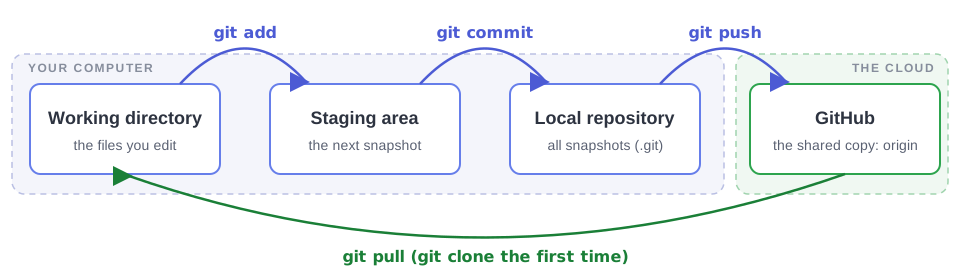
You edit files in the working directory.
git addputs the changes you choose in the staging area: the next snapshot, being prepared.git commitsaves that snapshot in the local repository (the hidden.gitfolder).git pushsends your commits to GitHub;git pullbrings other people’s commits back.
1.1 Get the project
Download the starter project:
calc-app.zip.Extract it. Windows: right-click → Extract All… → Extract. macOS: double-click it. You get a folder named
calc-app, usually in yourDownloadsfolder.Open a terminal (Git Bash on Windows) and go into that folder:
cd ~/Downloads/calc-app      # or wherever you extracted it
ls -a
You must see exactly this. If you see another
calc-appfolder instead,cdinto it:. .. .github .gitignore README.md app pytest.ini requirements-dev.txt requirements.txt tests
Open the folder in your editor and look around: app/calculator.py does the
arithmetic, app/main.py is the web page and the API, and tests/ checks
both. README.md explains how to run it.
Optional: run the app (needs Python)
python -m venv .venv
source .venv/bin/activate        # Windows (Git Bash): source .venv/Scripts/activate
pip install -r requirements-dev.txt
pytest -v                        # 8 tests, all pass
flask --app app.main run --port 8000
Open http://Ctrl+C. Try 1 divide 0... you will meet that bug again in Part 2.
1.2 Turn it into a repository and commit
git init
git status
git init creates the hidden .git folder: this folder is now a
repository. git status is the command you will type most often; it tells
you what Git sees. Right now every file is untracked (red): Git sees
them, but does not record them yet.
Stage everything, then commit:
git add .
git status                                # now green: staged, ready to commit
git commit -m "Add the calculator app"
git log --oneline
You have one commit. Its message says what the change does, in the imperative (“Add”, “Fix”, “Rename”), as if completing the sentence “This commit will...”.
1.3 Keep secrets out with .gitignore
Projects often have files that must never be committed: passwords, API keys, build output. Create one:
echo "SECRET_KEY=do-not-share" > .env
git status
.env does not appear, because the .gitignore file lists it. Open
.gitignore to see what else it excludes. Anything pushed to a public
repository can be copied within seconds, and deleting it later does not
remove it from the history.
1.4 Publish the repository on GitHub
On GitHub, click + (top right) → New repository.
Repository name:
calc-app. Visibility: Public.Do not add a README, a
.gitignoreor a license: your project already has its files, and they would conflict.Click Create repository.
GitHub shows the commands for “…or push an existing repository from the command line”. Copy them, or type:
git remote add origin https://github.com/<you>/calc-app.git
git branch -M main
git push -u origin main
remote add origingives the GitHub address a short name,origin.branch -M mainmakes sure your branch is calledmain.push -u origin mainsends your commits and remembersorigin/mainas the branch to push to and pull from, so next timegit pushis enough.
The first push asks you to sign in (see Setup, step 4).
Refresh the GitHub page: your files are there, and the README is displayed below them.
1.5 The daily loop: edit, commit, push
Open README.md and add a line under the title, with your name:
Maintained by Your Name.Then:
git status                     # README.md is "modified"
git diff                       # exactly what changed: + added lines, - removed lines
git add README.md
git commit -m "Add the maintainer to the README"
git push
On GitHub, click the commits counter (the clock icon) above the file list: there are your two commits. Click one to see its diff.
1.6 Branches and pull requests
Until now you committed straight to main. In a team you don’t: main must
always work. Every change is made on its own branch, then proposed as a
pull request (PR), where others can discuss, review and test it before it
is merged into main. This is called the GitHub flow:
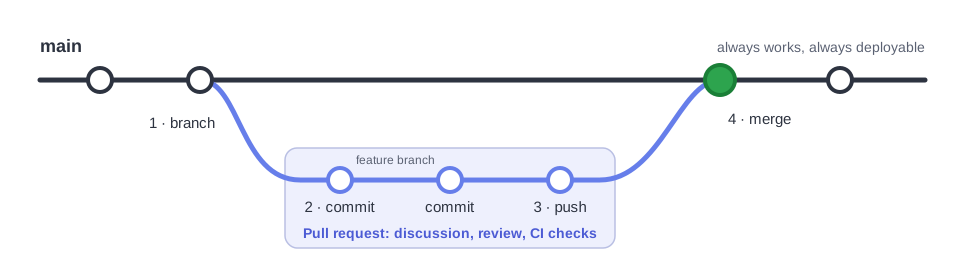
Create a branch and switch to it:
git switch -c add-examplesIn README.md, add a section at the end:
## Examples

    /api/multiply?a=6&b=7   ->   42
    /api/subtract?a=10&b=4  ->   6
Commit, and push the branch (the first push of a new branch needs -u):
git add README.md
git commit -m "Add API examples to the README"
git push -u origin add-examples
Now open the pull request:
On GitHub, click the yellow Compare & pull request banner. If it is not there, go to the Pull requests tab → New pull request, and pick
add-examplesas the branch to compare.Write a title and a short description: what and why.
Click Create pull request.
Take the tour: the Conversation tab is the discussion, Commits lists the commits, and Files changed shows the diff. On Files changed, hover over a line, click the blue +, and leave a review comment. In a team, a teammate would do this and then approve the PR (you cannot approve your own).
Finally click Merge pull request → Confirm merge, then Delete
branch. The branch’s work is now in main.
Bring your local main up to date, and look at the history:
git switch main
git pull
git log --oneline --graph
git branch -d add-examples     # the local branch is no longer needed
1.7 A merge conflict, on purpose
Git merges changes on its own when they touch different lines. When two people change the same line in different ways, Git cannot guess who is right, and asks you. This is a merge conflict. It is normal, not an error, and easy to fix once you have seen one.
Let’s create one. A “teammate” (you, on GitHub) and you (on your computer) will rename the page title, differently.
The teammate, on GitHub:
Open
app/main.pyin your repository and click the ✏️ Edit icon.Change the line
<h1>Calc App</h1>to<h1>Team Calculator</h1>.Commit changes… → Commit directly to the main branch → Commit changes.
You, on your computer, on a new branch, without pulling first:
git switch -c rename-titleChange the same line in app/main.py to <h1>My Calculator</h1>, then:
git commit -am "Rename the page title" # -a stages every modified fileNow bring in what happened on GitHub’s main in the meantime:
git fetch origin                # download the new commits, change nothing yet
git merge origin/main           # merge them into your branch
CONFLICT (content): Merge conflict in app/main.py
Automatic merge failed; fix conflicts and then commit the result.Open app/main.py. Git has written both versions into the file:
<<<<<<< HEAD
  <h1>My Calculator</h1>
=======
  <h1>Team Calculator</h1>
>>>>>>> origin/main
The part between <<<<<<< and ======= is yours (HEAD); the part between
======= and >>>>>>> is theirs. To resolve the conflict, edit the file
into the version you want: keep one line, the other, or write a new one.
Then delete the three marker lines. VS Code offers buttons for this:
Accept Current, Accept Incoming, Accept Both.
Then tell Git the conflict is resolved, and finish the merge:
git add app/main.py
git commit -m "Merge main into rename-title"
git push -u origin rename-title
Open a pull request for rename-title. GitHub now says “This branch has
no conflicts with the base branch”. Merge it, delete the branch, and update
your local main:
git switch main
git pull
git log --oneline --graph # the two lines of history meeting at the mergeOops: how do I undo?
| Situation | Command |
|---|---|
| Throw away my uncommitted changes to a file | git restore <file> |
| Unstage a file (keep the changes) | git restore --staged <file> |
| Fix the message of my last commit, before pushing | git commit --amend -m "Better message" |
| Undo a commit that is already pushed | git revert <hash>: a new commit that does the opposite |
| Abandon a merge that went wrong | git merge --abort |
Never rewrite history that others have already pulled: revert is the safe
way to undo shared commits.
What you learned
git init, status, add, commit, log, diff, remote, push,
pull, fetch, switch -c, merge; the staging area; .gitignore;
branches, pull requests, code review comments and merge conflicts. Next, you
plan the work. Continue with Part 2.